
Applies to: All websites running the Herald CMS. These instructions do not apply to the legacy CMS.
You can choose which tabs visitors see on your calendar page and arrange them in the order that works best for your church.
The example below shows all three tabs: Featured Events, Calendar, and List View.
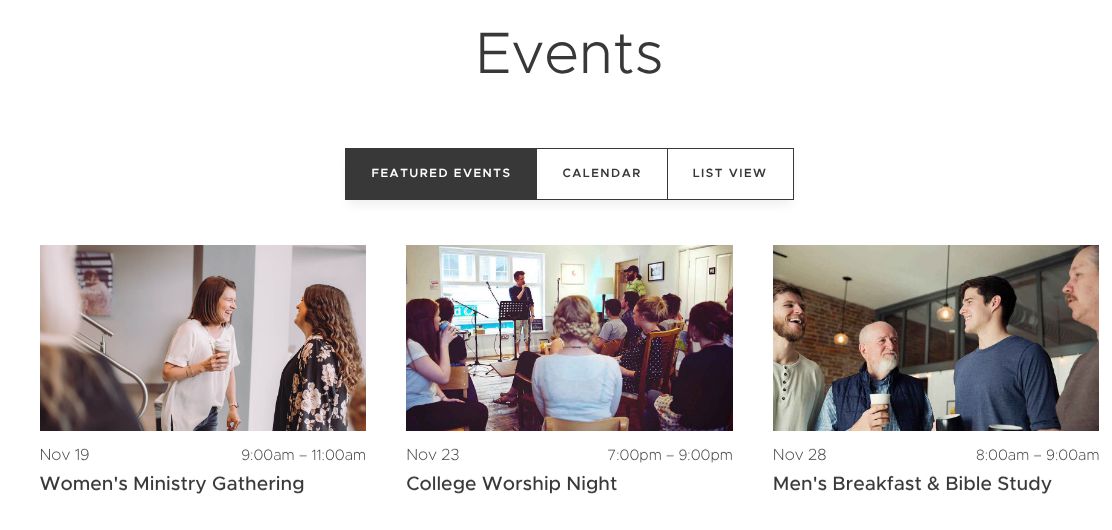
1. Open your event settings
- Log in to the Herald CMS.
- Go to Content → Events → Settings.
- Find the Event Tab Displays section.
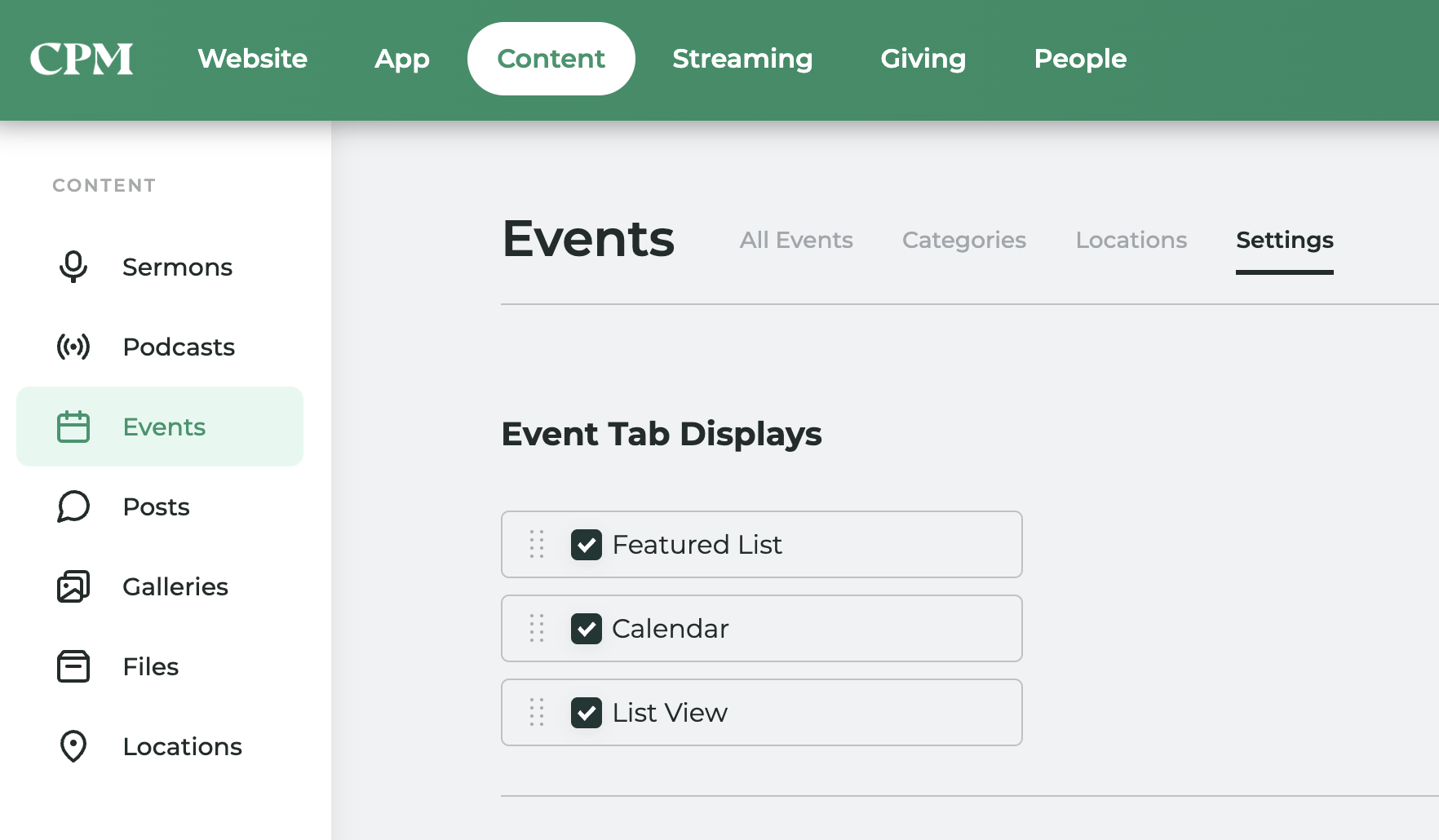
2. Choose which tabs appear
Use the checkbox beside each option:
- Checked: The tab appears on your calendar page.
- Unchecked: The tab is hidden.
| CMS setting | Tab on the example website | What it displays |
|---|---|---|
| Featured List | Featured Events | Your featured events. |
| Calendar | Calendar | Events in a monthly calendar. |
| List View | List View | Events in a list organized by date. |
Example: To show only Calendar and List View, uncheck Featured List and leave the other two options checked.
3. Reorder the tabs
- Find the dotted drag handle at the far left of the tab’s row, just before its checkbox.
- Click and hold the handle.
- Drag the row up or down to its new position.
- Release it, then repeat for any other tabs you want to move.
The checked options’ order from top to bottom determines the tabs’ order from left to right on your calendar page.
Example: To place List View before Calendar, drag the List View row above Calendar.
4. Review your calendar page
Open or refresh your website’s calendar page. Confirm that the tabs you selected appear in the order you intended.
Note: These settings control the event-view tabs. The Filter by Category menu is a separate control.