
Apple Podcasts and Spotify check your podcast’s RSS feed for new sermons, updated descriptions, artwork, and other changes. These updates may take several hours to appear.
Before you begin
- Confirm the sermon or change is published and appears in your live podcast RSS feed. You can find the location of your sermons feed by going to:
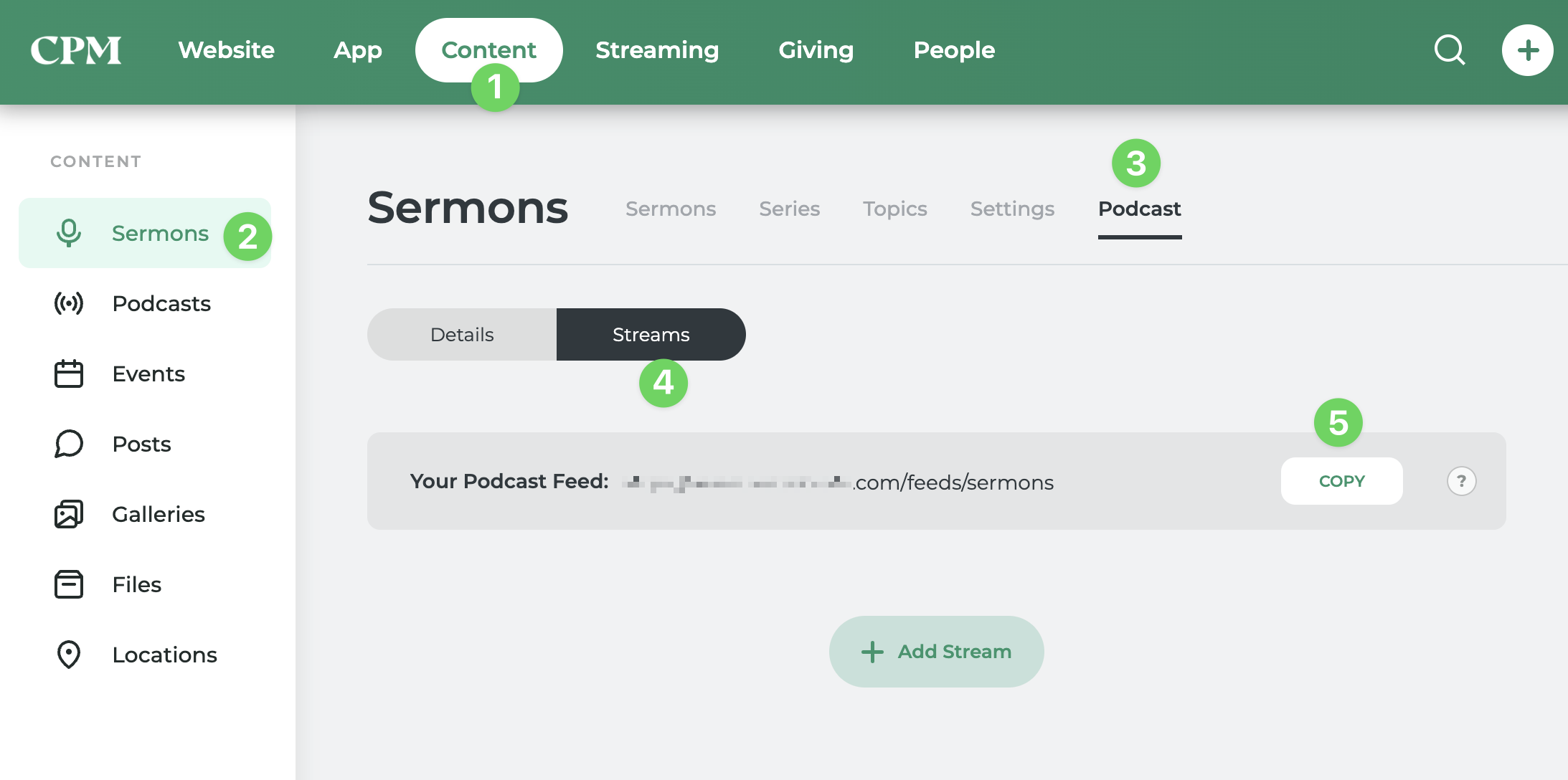
- Sign in to Apple Podcasts or Spotify using the account that manages your podcast. If someone else submitted it originally, you may need their help accessing the account.
Refresh your feed in Apple Podcasts
- Sign in to Apple Podcasts Connect.
- Select your podcast.
- On the show information page, check Last Refresh to see when Apple last checked your feed.
- Confirm your show’s status is Published. If another status appears, an issue may need to be resolved first.
- Select Refresh Feed to request another check.
A refresh request does not guarantee an immediate update. Allow time for Apple to process the changes.
If your podcast still does not update, follow the support link in Apple’s feed refresh instructions.
Check your feed in Spotify
Spotify checks your RSS feed automatically. Its current support instructions do not include a manual Refresh Feed option.
- Sign in to Spotify for Creators.
- Select your podcast and open Settings.
- Confirm the RSS feed URL matches your current podcast feed.
- Allow up to 24 hours for new episodes or changes to appear.
The Update button in Settings is used to change your RSS feed address. You do not need to change the address to refresh an existing feed.
If your feed is correct and updates are still missing after 24 hours, contact Spotify Creator Support. Include your RSS feed URL, Spotify podcast link, and a description of what is missing or outdated.
Replaced artwork or audio still showing the old version?
Upload the replacement with a new filename, then update the image or audio link in your podcast feed. A different file URL helps podcast platforms recognize that the file has changed.
Need help?
Submit a ticket to our support team with your church website address, podcast links, and the sermon or change that is not appearing. We can help check your source feed.