Google requires every church with an active Google Play developer account to declare whether it is a trader or non-trader by February 1, 2027. This applies even if your Android app is available only in the United States. Completing the declaration helps keep your app available on Google Play.
1. Sign in to Google Play Console
Open Google Play Console and sign in with the Google account that owns your church’s developer account. If Google lists more than one developer account, choose the one that publishes your church’s app.
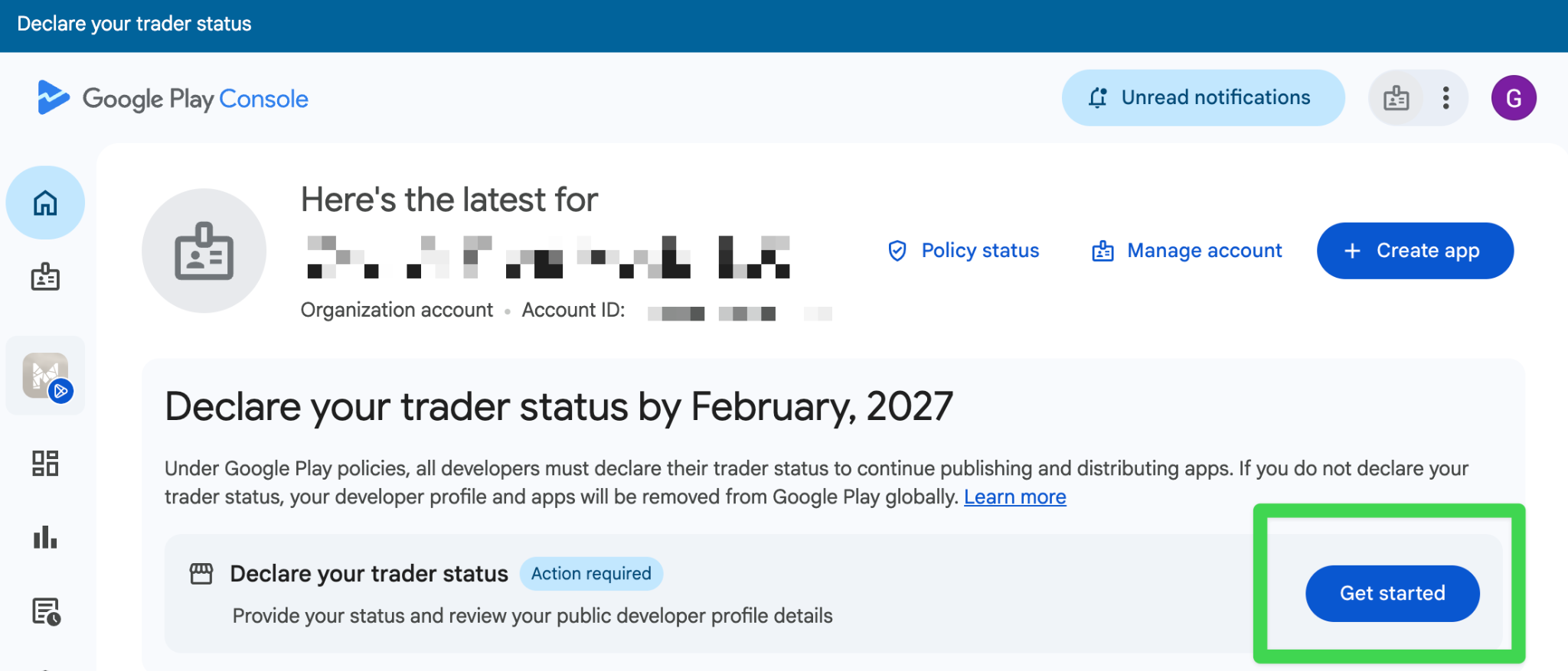
On the home page, find Declare your trader status and click Get started.
2. Click Declare status
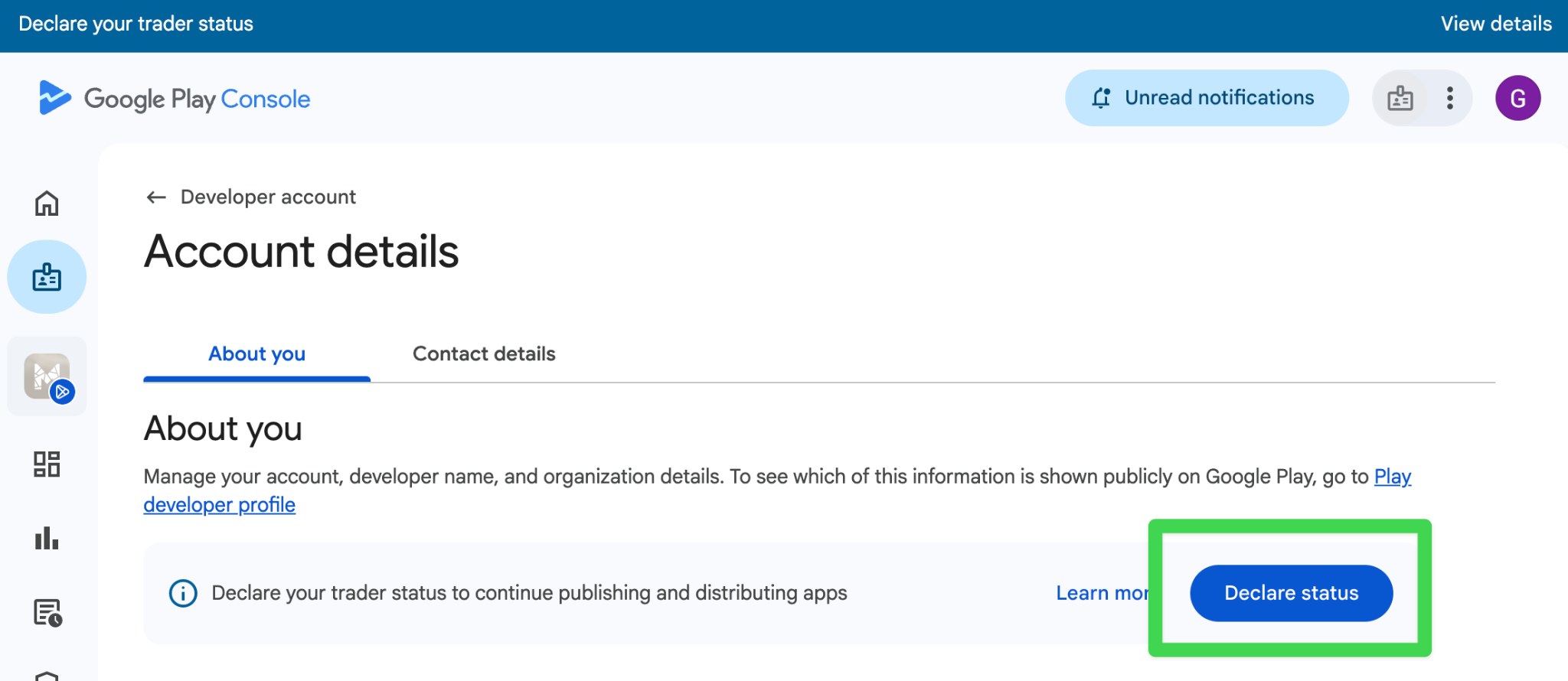
On the Account details page, open the About you tab and click Declare status. You can also reach this page from Manage account → Account details → About you.
3. Choose the status that applies to your church
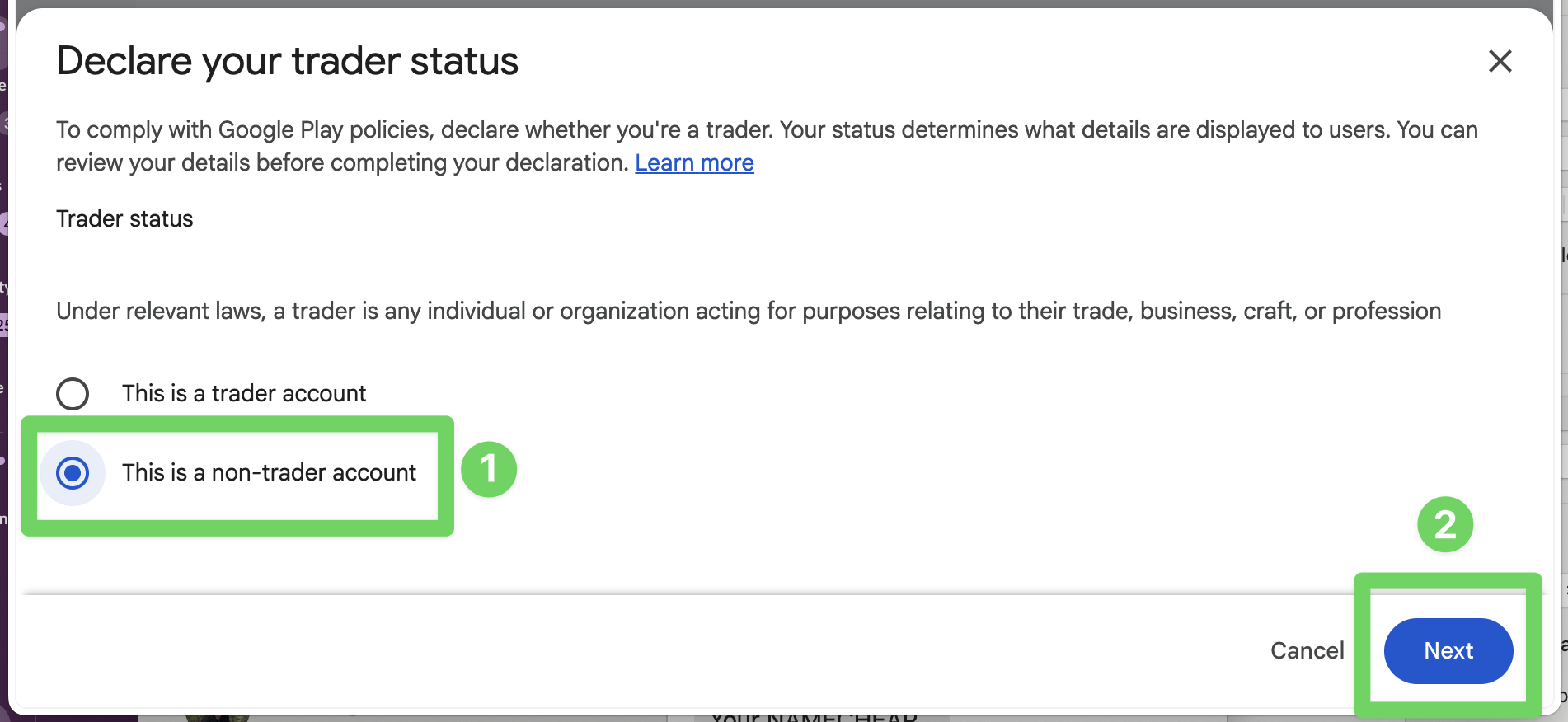
Select This is a non-trader account, then click Next.
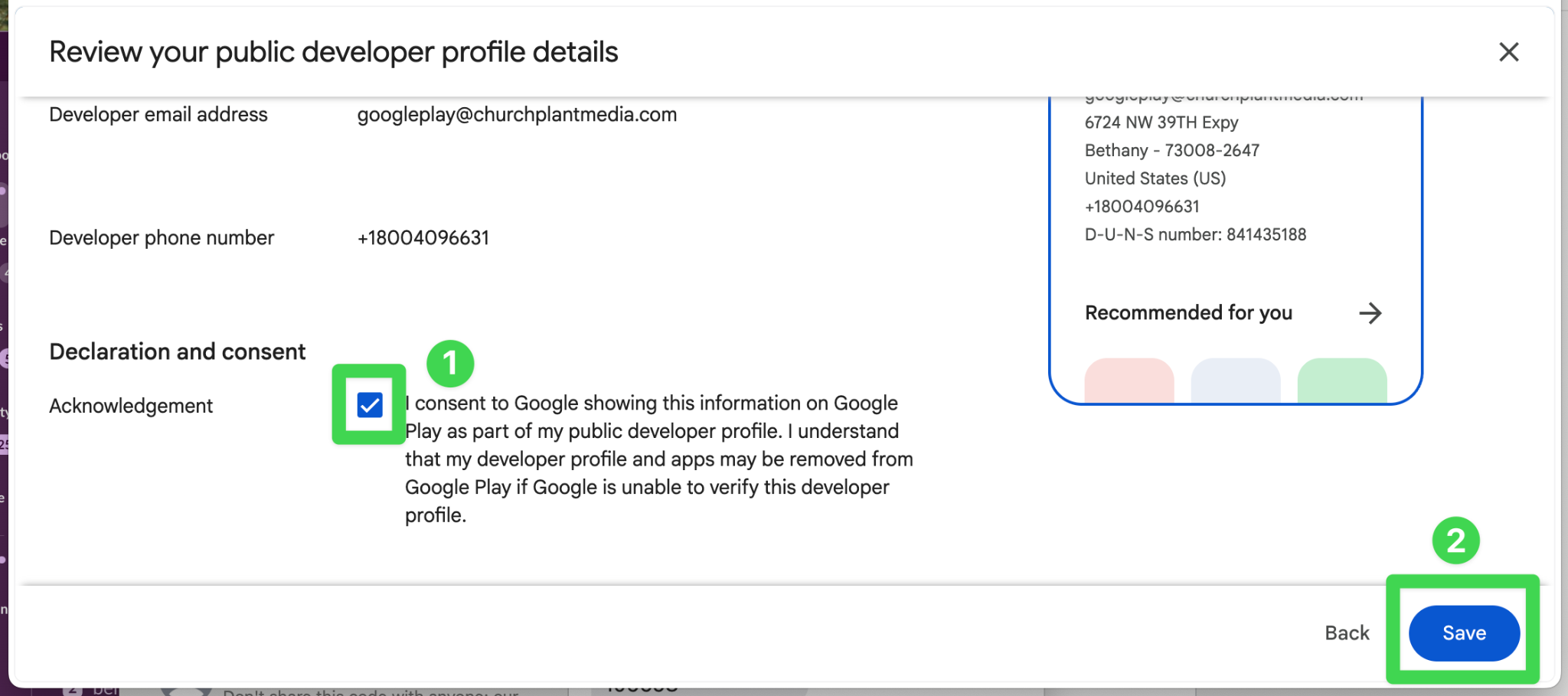
4. Review your public developer profile
Check the information Google will display for your church, including the developer email address and phone number. The screenshot shows example contact details. Your screen should show the details for your church’s developer account.
Once the information is correct, check the Acknowledgment box under Declaration and consent, then click Save.
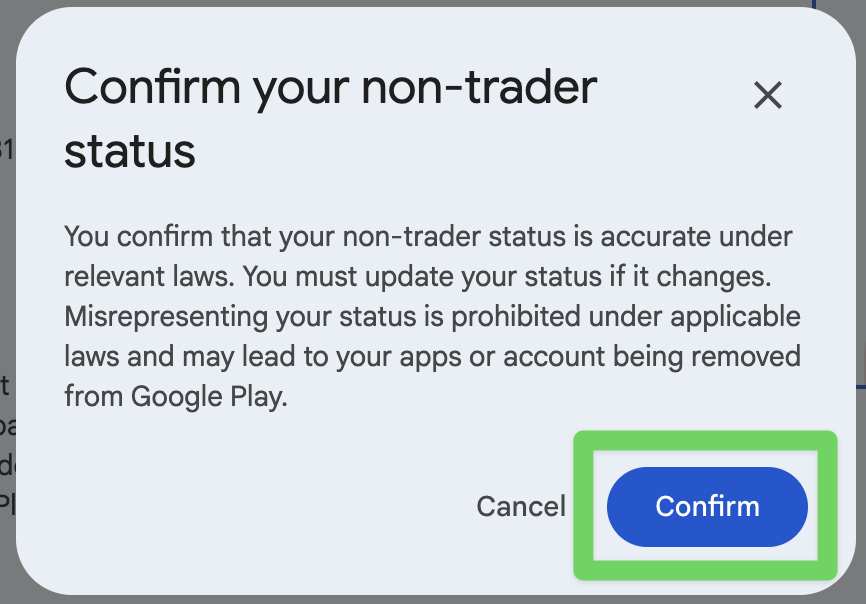
5. Confirm your declaration
Google will ask you to confirm your choice. Read the statement, then click Confirm to submit your declaration. If your church’s status changes later, update it in Google Play Console.