
Anchors let visitors jump to a specific section of a page. They are useful for longer pages with service times, ministries, FAQs, or registration details.
In Herald, you can create anchors with an HTML block, then connect a text link or button to it. This example links to a Service Times section on a Plan a Visit page.
You will need administrator access and a page that uses content blocks.
Step 1: Choose where visitors should land
- Open your page on the website and copy its address. For this example, we will use
https://www.yourchurch.org/plan-a-visit. Replace that address with your actual page URL. - Log in to Herald and open that page for editing (Website > Pages).
Step 2: Add the anchor with an HTML block
- Place your cursor above the existing block where you'd like your anchor to go. In this example, locate the Service Times block and hover your cursor above it.
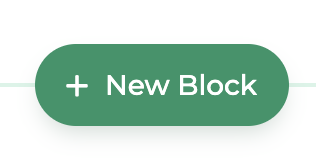
- Click the green +New Block button that appears.
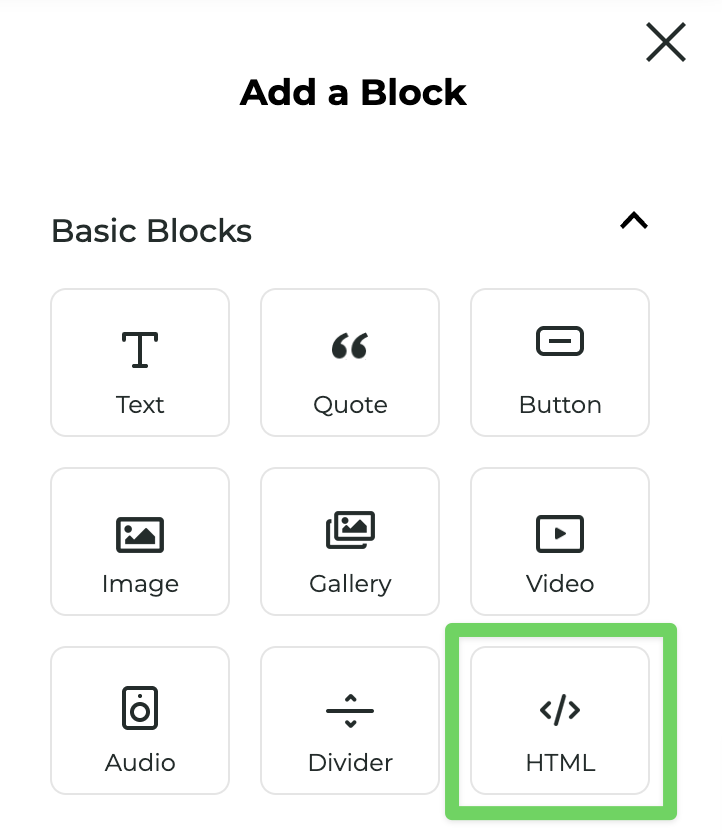
- Under Basic Blocks, select HTML.
- The block will install with sample code. You want the block to be directly above the Service Times section, so use the block toolbar’s Up/Down controls to adjust its position.
- Once it's in the correct position, replace the sample code with the following. Customize it with your anchor name. In this example, we'll use
service-times.
Note: Use lowercase letters and hyphens, with no spaces. Each destination must have a unique name on that page.
<div id="service-times"></div>This creates an invisible destination. Keep your existing Service Times heading and content below it, and leave the HTML block enabled.
Important: The HTML uses id="service-times" without a #. The # belongs in the link address.
Step 3: Create a text link
- Near the top of the page, add a Text block or use an existing one.
- Type View service times.
- Highlight those words.
- Click the chain-link icon in the floating toolbar.
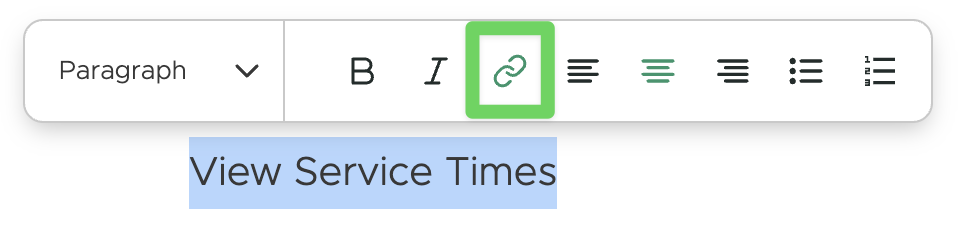
Selecting text reveals the toolbar. The chain-link icon is immediately to the right of Italic.
- In the link chooser, select Url.
- Paste your page’s full address into the URL field, adding
#service-timesat the end:
https://www.yourchurch.org/plan-a-visit#service-times- Leave Open in new tab unchecked so visitors stay on the same page.
- Click Add Link.
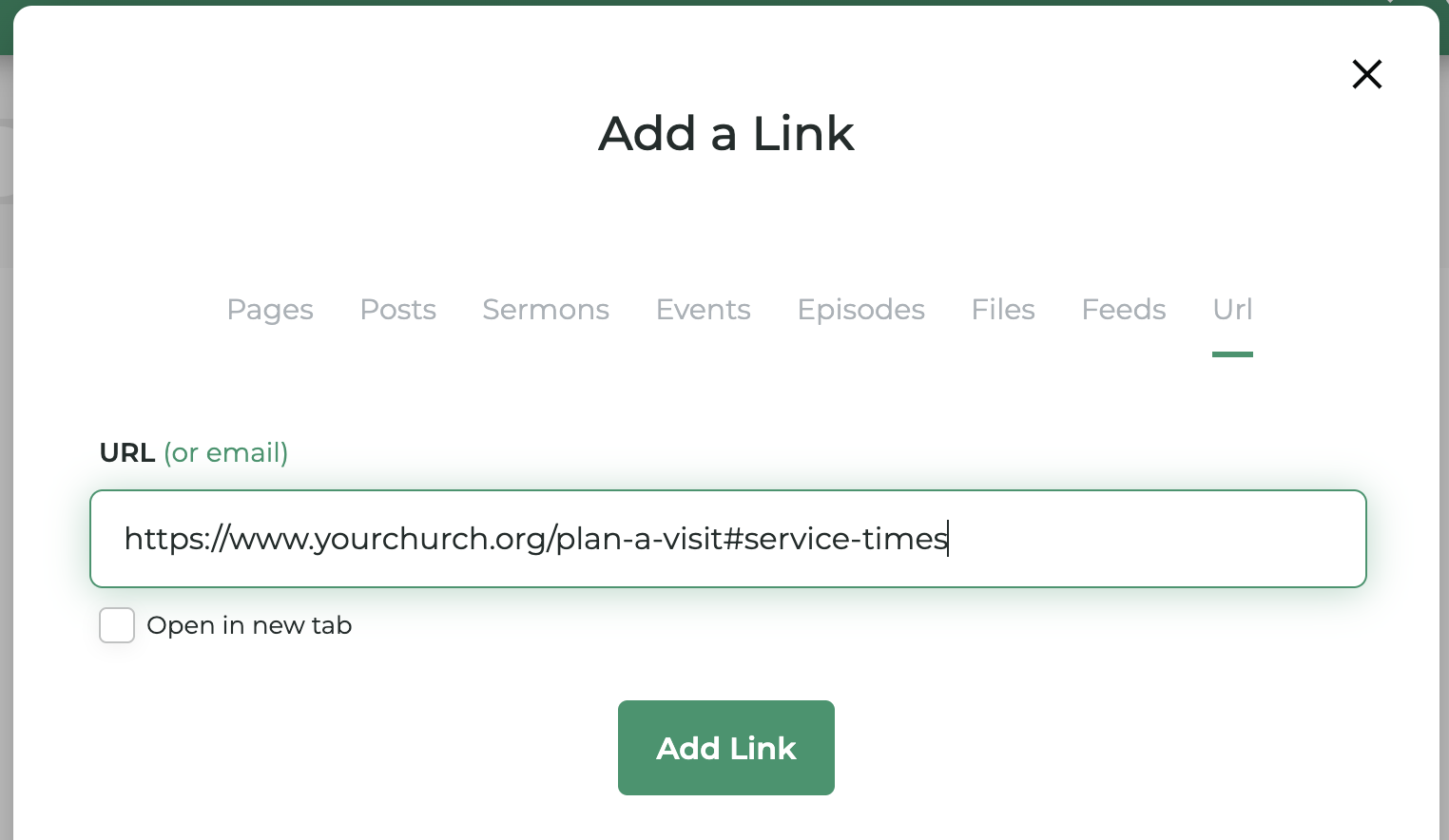
Replace the sample URL pictured with your anchor address.
The address before # identifies the page. The text after # must exactly match the HTML block’s id, including capitalization.
Browsers also support the shorter #service-times for the current page; this guide uses the full address in Herald’s URL field.
Optional: Use a button instead of a text link
You can connect a button to the same destination.
- Add a Button block, or click an existing button.
- Open the button’s Link/Text control.
- In Add a Title, enter View service times.
- Click Link to to choose its destination.
- Select Url and enter the same full page address ending in
#service-times. - Keep Open in new tab unchecked, then apply the link.
- Back in the Edit Link window, click Update Link.
Enter your button label in Add a Title and select your anchor destination through Link to.
Step 4: Publish and test
- Click Publish to make your changes available on the website.

- Open or refresh the public page in your browser. Test there rather than inside the editor, where clicking may select content for editing.
- Start near the top of the page and click View service times.
- Confirm that the page moves to the Service Times section without opening a new tab.
- Paste the complete anchor address into a new browser tab. Confirm that it also opens at the correct section.
- Check the result on both a computer and a phone.
Tip: Copy the exact public page address, including any trailing slash, before adding the # and anchor name. This helps avoid unnecessary redirects.
A section near the bottom of the page may not reach the very top of the screen because there is no more page below it to scroll through.
Adding more anchor links
Repeat the process for each section. Place each HTML block immediately before its matching content.
| Section | HTML block code | Add to the page URL |
|---|---|---|
| Service Times | <div id="service-times"></div> | #service-times |
| Kids | <div id="kids"></div> | #kids |
| FAQs | <div id="faqs"></div> | #faqs |
Use a different id for each destination. Multiple links or buttons can point to the same destination.
You can also link from another page, an email, or a shared message. Use the destination page’s complete address plus the anchor:
https://www.yourchurch.org/plan-a-visit#service-timesTroubleshooting
The link does not jump to the section
Check that:
- You published the changes.
- The HTML block is enabled.
- The name after
#exactly matches the HTML block’sid. - The link points to the page containing the anchor.
- You have not used the same
idtwice on that page.
The link opens a new tab
Edit the link, clear Open in new tab, apply the change, and publish again.
There is a blank gap above the section
Open the HTML block’s properties and reduce its spacing above and below. Leave the anchor block enabled.